WalkingPad C2 Setup Guide

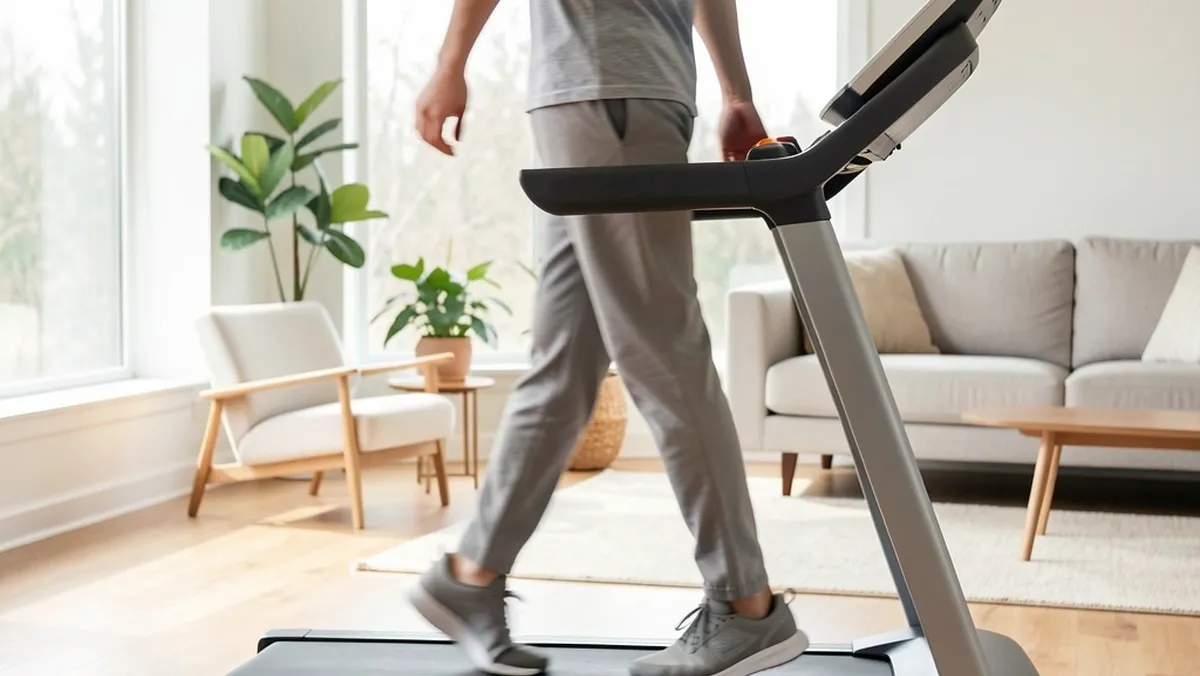
If you just got a WalkingPad C2, here is the truth: the treadmill really does require no assembly.
But getting from the box to your first walk smoothly requires three phases that most guides skip—physical unboxing, electronic calibration, and app integration.
Do them in the right order, and you will be walking in under 10 minutes. Do them out of order, and you will be frustrated. I have been through this myself, and I want to save you the head-scratching.
Phase 1: Physical Setup – What You Need Before Unboxing
Before you start, pick a spot. The C2 works best on a hard, level surface like tile, wood, or laminate. Carpet can interfere with the FootSense sensors and make the belt feel uneven.
If you must use carpet, place a thin plywood board under the machine.
You also need enough clearance: at least 6 feet of ceiling height if you plan to walk upright, and about 2 feet of space behind the machine so you can step off safely. No tools are required.
A utility knife helps cut the tape on the box, but you can manage with scissors. The C2 weighs about 62 pounds, so you may want a second person to help lift it out of the box.
Unfolding and Positioning the WalkingPad C2
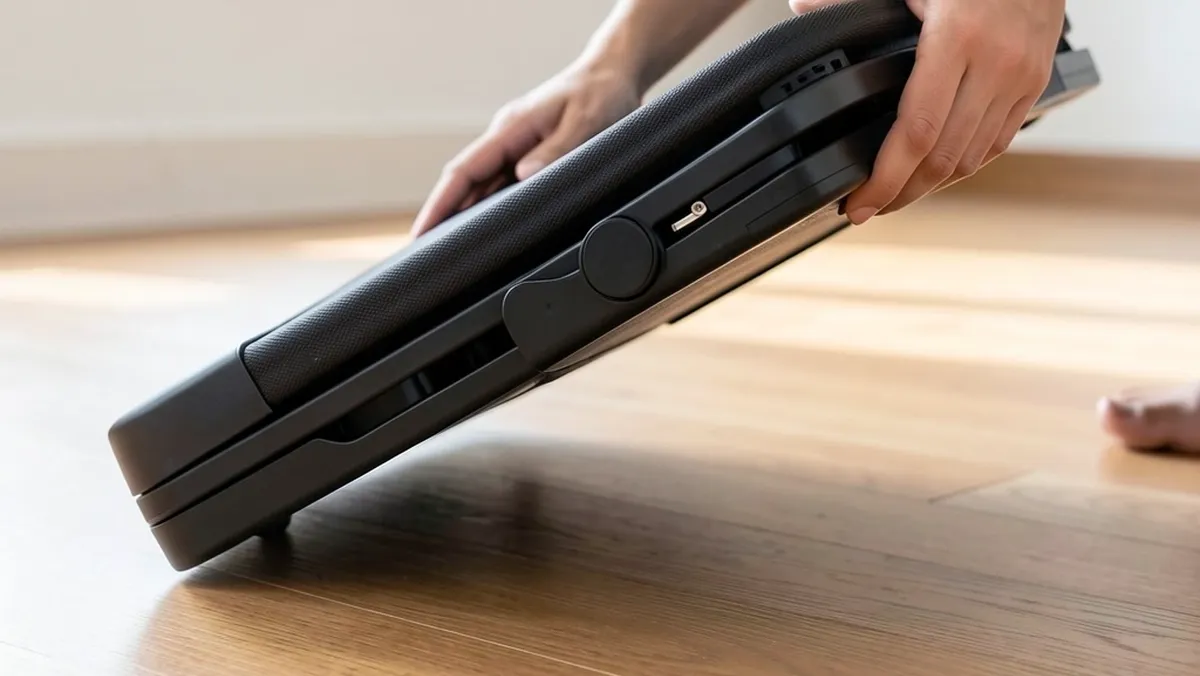
The C2 arrives folded in a 180-degree position. To unfold:
- Lift the treadmill out of the box by grabbing the ends of the deck—never lift by the walking belt.
- Place it on the floor with the folded side facing up.
- Rotate the deck upward until it clicks into a flat position. You will hear a locking mechanism engage.
- Verify both sides are locked by gently lifting the deck. It should not wobble.
That is it. The "ready out of the box" claim is real. There are no bolts, screws, or parts to attach. The wheels are pre-installed and let you roll the machine into position.
Phase 2: Electronic Calibration – What It Is and Why It Matters
Most first-time users panic during calibration. I did. The C2 makes clicking, humming, and whirring sounds, and the belt moves on its own. That is normal.
Calibration is the treadmill checking its own sensors, motor, and belt tension. It typically lasts 2 to 5 minutes on the first power-on.
How to Start Calibration Correctly
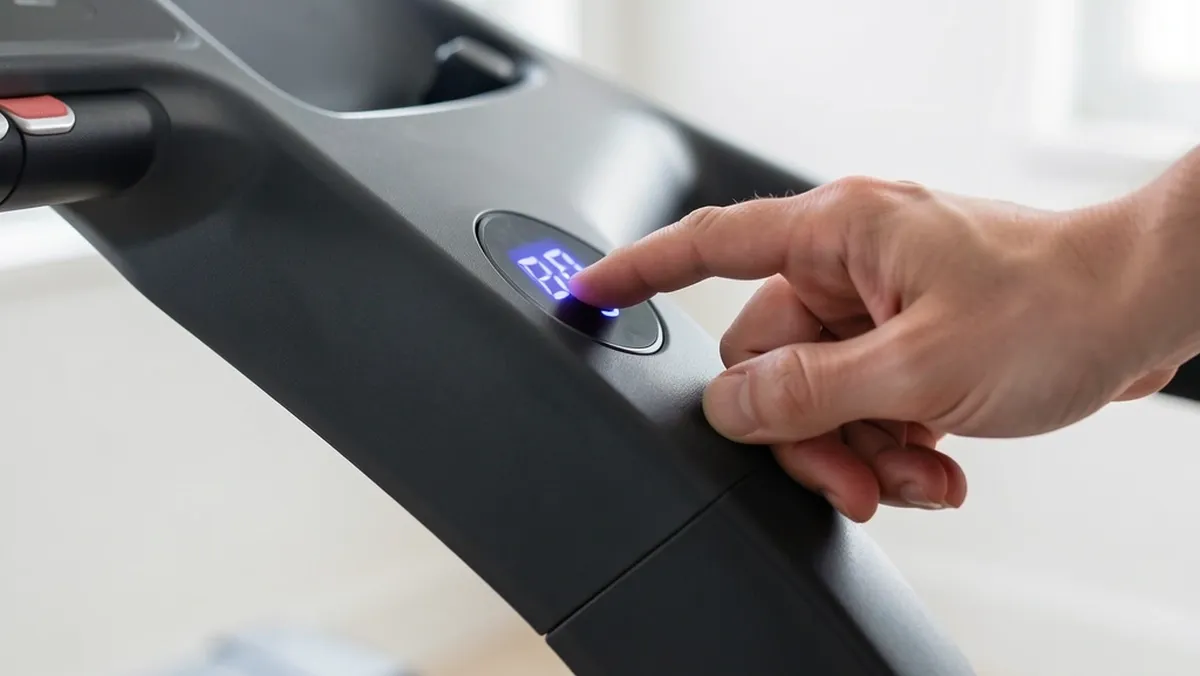
- Plug the power cord into a wall outlet. Do not use an extension cord if possible.
- Press the power button on the side of the unit (not the remote). The LED screen will light up.
- The belt will begin moving slowly, then speed up, then slow down. Do not stand on the belt during this process.
- Watch for the LED to show "0.0" or the speed to stop changing. That means calibration is complete.
If you interrupt calibration by stepping on the belt or unplugging the unit, the treadmill may behave erratically later. Let it finish.
If you see an error code like E01 or E02, unplug for 30 seconds, make sure the unit is on a hard flat surface, and try again.
Normal Calibration Behavior vs. Signs of a Problem
- Normal: Clicking sounds, belt moving in both directions, LED flickering, a one-second pause, then smooth operation.
- Problem: Belt does not move at all after 30 seconds; LED stays dark after power-on; repeated beeping without movement. If you see these, contact support.
Phase 3: Operation Setup – Remote and App
Once calibration finishes, you can use the treadmill immediately with the remote, but I recommend setting up the app first for the latest firmware.
Connecting the Remote Control
The remote comes with a battery installed, but a plastic pull-tab prevents it from activating during shipping.
Remove the small tab from the battery compartment, then press the power button on the remote. If the LED on the remote blinks, it is paired automatically with the treadmill.
No extra pairing steps are needed. If the remote does nothing, check the battery orientation. I have seen units where the battery was inserted backwards from the factory.
Replace it with a fresh CR2032 if needed.
Pairing with the KS Fit App
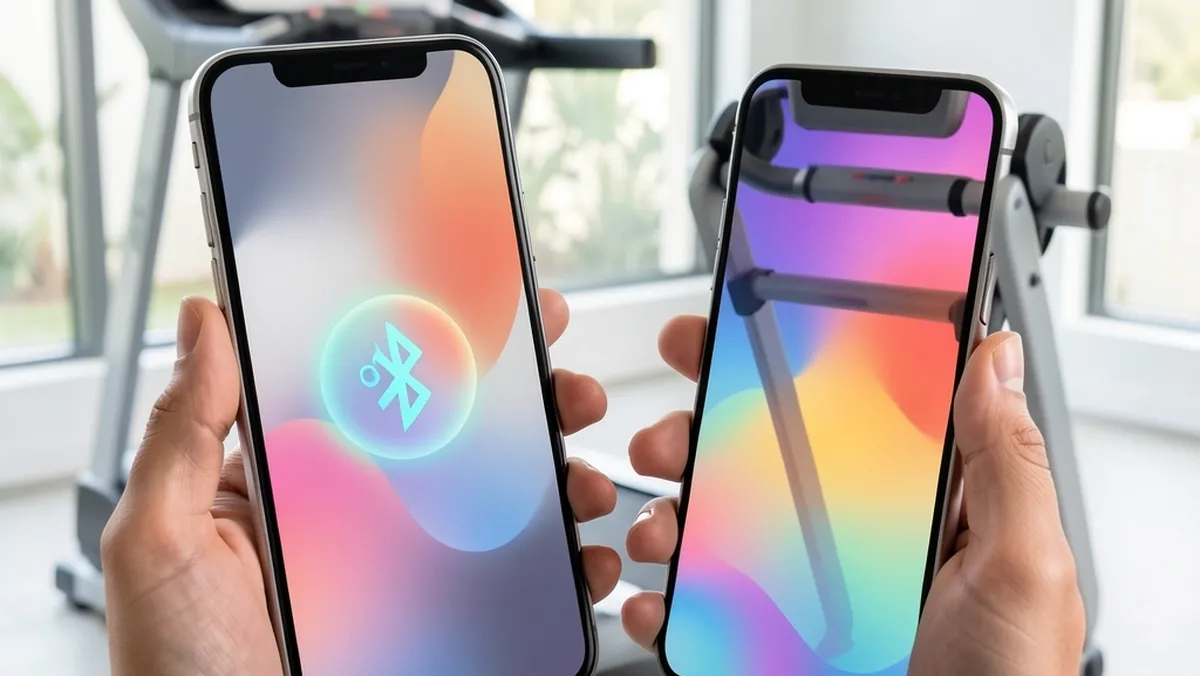
- Download the KS Fit app from your phone’s app store (iOS 12+ or Android 6+).
- Create an account or skip if you want guest mode. Guest mode limits some features but works for basic tracking.
- Ensure your phone’s Bluetooth is on. The C2 uses Bluetooth 4.0, which is compatible with most modern phones.
- Tap "Add Device" in the app. The app will scan for nearby treadmills. Make sure the C2 is powered on and in standby mode (not in use).
- Select "C2" from the list. If it does not appear, close the app, restart your phone’s Bluetooth, and try again.
Once connected, check for firmware updates. Tap "Settings" in the app and look for "Firmware Update." If an update is available, install it before your first walk.
This update often fixes speed calibration and improves FootSense accuracy.
Testing FootSense Control
FootSense is the system that changes speed based on where you stand—step forward to go faster, step back to slow down. It works in Automatic Mode. Here is how to test it:
- Stand on the belt in the center. The LED should show a speed, likely 0.5 mph.
- Take one step forward toward the front of the deck. The speed should increase gradually.
- Step backward toward the rear. The speed should slow down.
If the speed does not change, you are likely in Manual Mode (controlled by the remote only). Press the remote’s mode button to switch to Automatic. Also, FootSense works best on hard floors.
On thick carpet, the sensors may not detect your position accurately.
Common Setup Mistakes and How to Avoid Them
- Unfolding on soft surfaces: I did this on a rug, and the locking mechanism didn’t engage fully. The deck wobbled. Always unfold on a hard floor.
- Skipping calibration: A friend of mine thought calibration was optional. His treadmill kept stopping randomly because the belt tension was not set correctly. Let it finish.
- Using the treadmill before the app update: The factory firmware sometimes has bugs. Updating prevents speed surges and connection issues.
- Remote battery tab not removed: I spent five minutes pressing a dead remote. Check the pull-tab first.
Verifying Your WalkingPad C2 Is Working Correctly
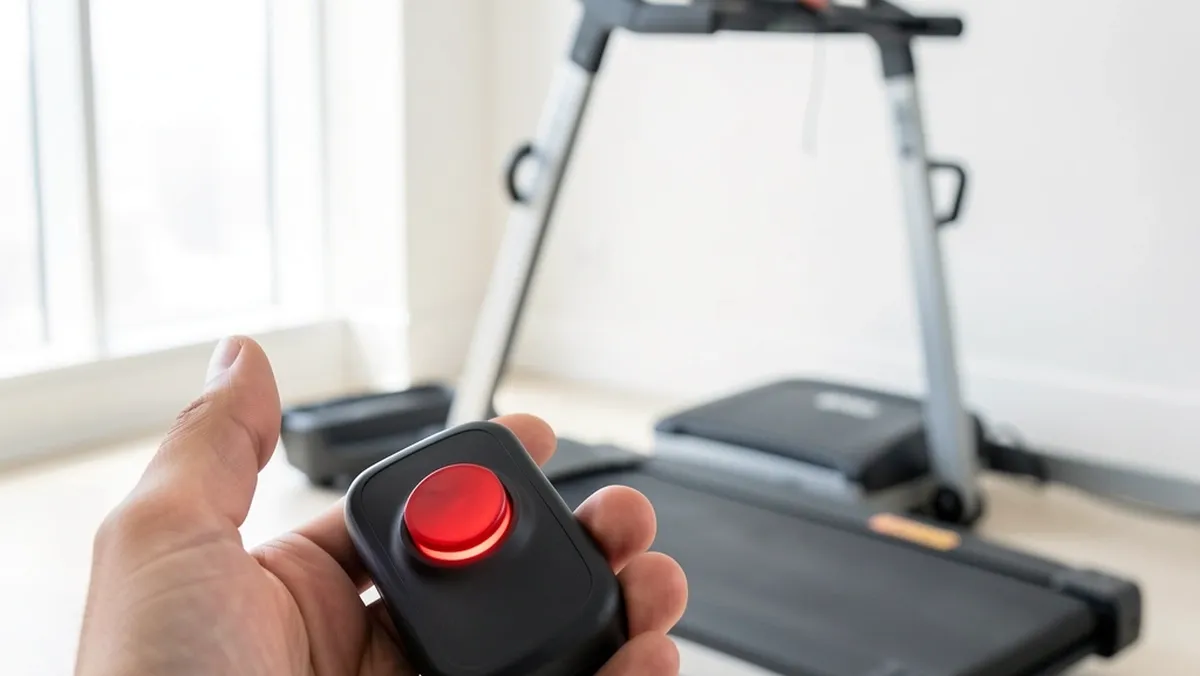
After setup, run through this quick checklist:
- Belt alignment: The belt should be centered on the deck. If it drifts to one side, contact support.
- Motor noise: A low hum is normal. Loud grinding or squeaking is not.
- Speed accuracy: Set the remote to 2 mph. Walk for 30 seconds. The LED speed should match.
- Safety features: Press the emergency stop button (located on the remote). The belt should stop immediately.
Frequently Asked Questions
Can I use the WalkingPad C2 immediately out of the box without the app?
Yes, the treadmill works independently for basic walking. The remote controls start, stop, and speed. However, I strongly recommend connecting to the app at least once to install the firmware update.
Skipping it may cause calibration issues later.
Will setup damage my floors?
The rubber feet protect hard floors during use. But when unfolding, the metal hinges can scratch delicate surfaces if you drag the unit. Always lift, not drag.
Do I need to update the firmware before first use?
Yes. WalkingPad releases updates that improve motor control and sensor accuracy. Connect the app immediately after calibration and check for updates.
What does the calibration error look like?
A flashing error code (E01, E02) on the LED screen, or the belt remains completely still after power-on.
If you see this, unplug for 30 seconds, ensure the treadmill is on a hard level surface, and plug it in again. If the error persists, contact customer support.
The app won't find my treadmill — what do I check?
First, confirm Bluetooth is on and no other devices are paired. Second, ensure the treadmill is powered on and in standby mode (not in use).
Third, close the app, restart your phone’s Bluetooth, and reopen the app. If it still does not detect, select the C2 model manually in the app’s device list.
Can I walk during calibration?
No. The belt moves on its own during calibration, and your weight interferes with sensor alignment. Wait until the LED shows "0.0" before stepping on.