How to Fix Apple Watch Step Counting While Your Hands Are on a Keyboard

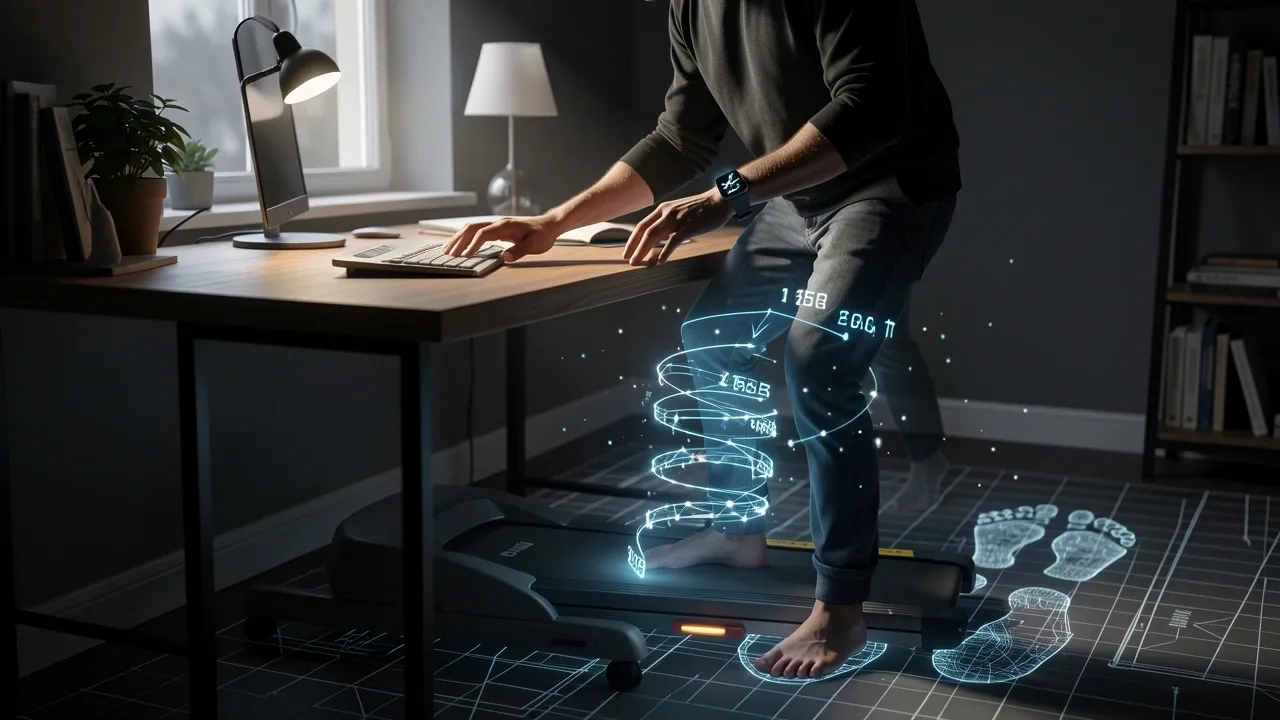
I remember the first time I was on my walking pad, typing away, and looked down at my Apple Watch to see it had recorded 300 steps while the treadmill display said 2,000.
That moment started a long, frustrating hunt for a fix. If you are here because the same thing happens to you, here is what I learned: your watch is not broken. It is using the wrong signal.
That is fixable.
The question of how to track steps accurately on an apple watch when hands are on a keyboard has three real answers.
You can move the watch to a different body part, force the watch into a different motion-detection mode, or stop relying on step count altogether and use heart rate data instead.
Each option has trade-offs. I tested all of them, and I will walk you through what actually works.
Why Your Apple Watch Misses Steps at a Keyboard
Your Apple Watch counts steps with an accelerometer, which measures acceleration. In normal walking, your arm swings forward and backward with each stride.
The watch is tuned to recognize that rhythm as a step. But when your hands are resting on a keyboard, your wrist barely moves.
The accelerometer sees almost no acceleration, so it assumes you are standing still. This is not a bug; it is a design decision that works well for most people in most situations.
Desk workers are the exception.
The frustrating part is that your feet are moving. Your legs take full strides under the desk, the treadmill belt rolls under you, and the floor vibrates slightly with every footfall.
But the accelerometer is sampling motion at your wrist, not your shin. It has no idea your legs are doing anything.
Here is a comparison that made the problem clear to me:
| Condition | What the accelerometer feels | What Apple Health records |
|---|---|---|
| Walking normally, arms free | Strong, rhythmic arm swings | Accurate step count |
| Walking on a treadmill desk, hands typing | Nearly zero wrist motion | Very few or zero steps |
| Sitting still but swinging your wrist | Strong arm swings | False steps |
The last row is the key to understanding the next point.
The Arm Swing Myth and the Ghost Step Problem
Search for advice on this issue and you will find a popular suggestion: just swing your arms more while typing. I tried it. It does not help. It makes things worse.
When you swing your wrist while seated, the accelerometer sees exactly the kind of motion it associates with walking.
Your watch happily logs hundreds of ghost steps that do not match the actual movement of your feet. You get a step count that looks good on paper but has no relationship to what your legs did.
And because the watch is now confused about whether you are walking or just gesturing, it gets even worse at detecting footfalls.
There is a deeper problem. The watch uses two different algorithms depending on the situation. In normal daily tracking, it relies on wrist motion.
But when you start a workout, it switches to a different mode that tries to use both foot impact and heart rate.
The arm-swing advice only makes sense inside that workout mode, and even then, it is unreliable because your swinging wrist sends contradictory signals.
The real fix is to either get the accelerometer closer to your feet or force the watch into workout mode so it stops looking for arm swings.
Hardware Fixes: Where to Put the Watch
Moving the watch to your lower body gives the accelerometer a direct view of your footfalls. This is the most reliable fix, but it forces you to give up wrist-based heart rate data.
Here are the options I tested.
Ankle Strap
You can buy a stretchable band made for attaching an Apple Watch to your ankle. I used one for about a week.
The step count became extremely accurate, matching the treadmill within two or three percent. The problems are practical.
The watch kept sliding down over my shoe, the heart rate sensor was useless because it could not get a good reading through the sock and bone, and the whole setup looked ridiculous in an office.
If you work from home like I do, this is a perfectly usable solution. If you care about heart rate data, you will need a separate chest strap that communicates with your phone.
Belt Clip and Shoe Mounts
Some third-party clips allow you to hang the watch from your waistband or slide it into a shoe pocket.
A shoe mount is the closest to your actual foot impact, and it gives you the most accurate step count.
But you lose heart rate entirely, and the watch face is vulnerable to damage from contact with the floor or treadmill housing.
I tried a shoe mount for one session and immediately stopped because I could not stop worrying about cracking the screen.
Foot Pods and Chest Straps with Accelerometers
Foot pods are small devices that clip to your shoelaces and count steps with their own accelerometer. The problem is that Garmin foot pods do not pair directly with an Apple Watch.
You would need to run a third-party bridge app like RunGap to get the data into Apple Health, and that adds a layer of complexity that most people do not want.
A better hardware option is a chest strap with a built-in motion sensor. I have tested the Polar Verity Sense, which has an accelerometer in the strap itself.
When attached to your upper arm, it counts arm swings. When worn as a chest strap, it tracks torso movement and steps. The step data can be written directly to Apple Health through the Polar Flow app.
This kept heart rate data and gave me accurate steps without moving my watch. It is more expensive than an ankle strap, but it is the cleanest hardware solution.
Here is a quick comparison of your hardware options:
| Option | Step accuracy | Heart rate | Ease of use | Best for |
|---|---|---|---|---|
| Ankle strap | Excellent | Lost | Easy | Home use, privacy |
| Shoe mount | Excellent | Lost | Clunky, risky | Short sessions |
| Foot pod | Good | Lost | Requires bridge app | Only if you own one |
| Chest strap with accelerometer | Very good | Kept | Moderate setup | Serious desk-walkers |
If you want the simplest hardware fix, the ankle strap wins. If you want to keep heart rate data, the chest strap is better.
The Software Trick: Indoor Walk Workout Mode
Here is the trick that made the biggest difference for me. Instead of moving the watch, you can tell it to stop relying on arm swings and start relying on footfall detection.
The Apple Watch has two different step-counting engines. The default daily-tracking engine is tuned for arm swings.
The workout engine, specifically the Indoor Walk workout, uses a combination of the accelerometer, the barometer, and your heart rate to infer steps.
When you turn on an Indoor Walk workout, the watch starts looking for the rhythm of your footfalls through the accelerometer, even if your hands are still.
Here is the exact sequence I use:
- Open the Workout app on your Apple Watch.
- Tap Indoor Walk.
- Press the green Start button.
- Put your hands back on the keyboard and keep walking.
Within about a minute, the watch begins to register steps as long as your feet are moving at a steady pace. It is not perfect.
I found it under-counted by around ten to fifteen percent if I changed speed often. But it is dramatically better than the near-zero count you get without the workout mode.
The watch also walks through the vibration in your desk and your subtle upper-body bounce to detect footfalls. Every stride causes a tiny bob in your torso, and the accelerometer picks that up.
There is one major caveat. This only works well if your watch is already calibrated to your walking gait.
If you have never done an outdoor walking workout for calibration, the Indoor Walk inference is weak. I will explain that next.
Calibration First: The Missing Prerequisite
Apple's accelerometer models your stride length and your personal walking pattern when you walk outside with GPS. This is why the outdoor Walk or Run workout is the baseline for all step tracking.
When you switch to an Indoor Walk workout, the watch uses that learned stride pattern to estimate how many steps you are taking.
If it has never seen you walk outside, it has nothing to compare against.
Before you rely on the Indoor Walk workout at your desk, go outside and do a 20-minute walk with the GPS enabled.
I know this sounds wasteful, but it takes one session and permanently improves the watch's step detection. I did it on a Saturday morning.
The walk was boring, but the improvement in my desk-treadmill step count was immediate and huge.
The watch now knows how your footfalls feel, so when your arms are still, it can recognize your steps from the torso bounce alone.
Handling Walking Pad Duplicates
Once you have the watch tracking steps correctly, you will likely run into a new problem: your walking pad also counts steps, and if you sync both to Apple Health, your daily total doubles.
I made this mistake on my first day. My walking pad reported 6,000 steps, my watch reported 5,500, and Apple Health proudly showed 11,500. The fix is to choose one source and disable the other.
Walking pads that sync to Apple Health through Bluetooth, like the LifeSpan or WalkingPad P1, write their step data directly to the Apple Health app. Your Apple Watch also writes steps.
The app does not intelligently deduplicate; it simply adds everything together. You have to pick one.
If your walking pad is the accurate one, go into the Apple Health app on your iPhone, tap your profile picture, tap Apps and Devices, find the walking pad, and choose Disconnect.
Or you can stop the app from writing steps while keeping it connected for workouts. If you prefer the watch data, just never connect the walking pad to Apple Health in the first place.
Here is a quick compatibility cheat sheet based on what I have seen around the web and in my own testing:
| Walking pad model | Apple Health sync | Notes |
|---|---|---|
| LifeSpan Treadmill Desk | Yes | Syncs steps and active minutes |
| WalkingPad P1 | Yes | Needs app, can be unreliable |
| Urevo Under Desk Treadmill | No native sync | Step count is on the console only |
| Generic manual treadmills | No | Use watch as sole source |
If your pad does not sync, just use the watch. If it does sync, decide which source you trust more and disable the other.
When Step Count Isn't The Real Goal
Here is something that changed my entire perspective. You might be tracking steps because you want to close your Apple Watch activity rings, or because you want a number to measure your daily movement.
But step count is a poor metric for desk-based walking. The watch's heart rate sensor is far more reliable than its accelerometer in this situation.
If your goal is health, the better metric is Active Energy, which Apple Watch calculates from your heart rate during the Indoor Walk workout.
When you start that Indoor Walk workout, the watch estimates calories and exercise minutes based on your heart rate and the accelerometer combined.
That is a much more honest measurement of what your body is doing than a raw step count, because it accounts for your age, weight, and actual effort.
Even if the step count is slightly off, your heart rate data is generally accurate as long as the watch is snug on your wrist.
So if you are ready to stop obsessing over the number of steps, change your primary activity ring to Exercise Minutes, and let the step count be a bonus.
That mental shift made the whole process less frustrating for me. But if you still want the number, the fixes above will get you close enough.
Frequently Asked Questions
If I wear the watch on my ankle, will the heart rate sensor still work?
No. The optical heart rate sensor needs blood flow close to the skin, and it works best on the wrist. On the ankle, it usually fails to get a consistent reading.
You will get accurate steps but no heart rate data. To keep heart rate, pair the watch with a separate Bluetooth chest strap that writes to your phone, then combine the data manually.
Does turning off Wrist Detection affect the Indoor Walk footfall count?
Wrist Detection is a feature that tells the watch when you are wearing it and which hand it is on. Turning it off does not directly affect footfall detection.
However, it can make the watch less responsive to motion-based wake gestures. Leave it on unless you are having specific problems with the watch locking onto your identity.
Can I manually add steps to Apple Health from the watch?
You cannot directly type a step number into the Apple Health app on your iPhone.
The only workaround is to use a third-party app like Pedometer++ or Lose It, which can write a step entry into Apple Health on your behalf. The watch itself only accepts data from the Workout app.
Will a Garmin foot pod pair with an Apple Watch in any form?
No. Garmin foot pods use the ANT+ protocol, and Apple Watch uses Bluetooth. Even with a Bluetooth version, Garmin does not allow third-party pairing.
You would need to record the walk with the foot pod on a Garmin device, then transfer the file through a service like RunGap or Tapiriik to Apple Health. That is too many steps for most people.
Why does my Apple Watch and walking pad show different step counts when I change speed constantly?
Walking pads sample their own belt movement in short intervals and average them out. Apple Watch processes accelerometer data in continuous batches.
When you speed up or slow down, the two algorithms disagree on where one step ends and the next begins. At a constant speed, they usually converge within a few percent.
If you need consistency, stick to one speed for the majority of your session.