How to Use a Walking Pad Without a Remote

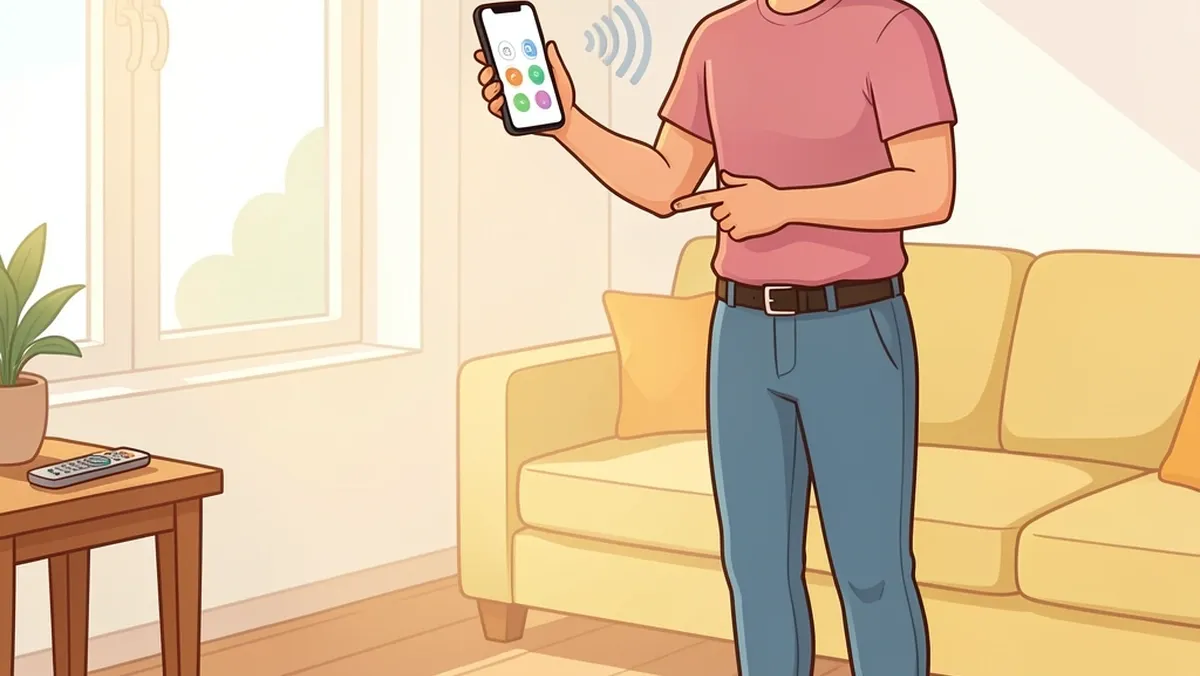
Yes, you can use most walking pads without the original remote. I have tested this on several brands over the years, including Yagud, Sperax, Airhot, and WalkingPad.
You have three real options: a smartphone app, physical buttons on the machine itself, or a universal remote.
The method that works for you depends on your specific model, but in almost every case at least one of these will get you walking again. Let me walk you through each option step by step.
What Are Your Options?
Before you try anything, take a second to think about what your walking pad needs to do: start the belt, change speed, and stop. Without the remote, you have these three alternatives:
- Smartphone app – if your pad has Bluetooth, the manufacturer provides a free app that can control everything.
- Physical buttons on the pad – many models have a small control panel built into the frame, often hidden under a cover or on the side.
- Universal remote – some walking pads use standard infrared (like a TV remote) or Bluetooth, and a cheap universal remote can replace the original.
Your first job is to figure out which of these your machine supports. Here is how.
Check Your Walking Pad's Hardware
Look for Labels and Ports
Most walking pads have a sticker underneath the deck or on the motor housing with the brand name and model number. Flip your pad over or look near the power cord.
Write that down – you need it for the app and for checking button locations.
Find Physical Buttons or a Safety Key Slot
Walk around the entire pad. Common button locations include:
- On the side of the deck, near the front.
- Under a small rubber flap on top of the deck (some WalkingPad models hide the power button there).
- On the front or back of the motor casing (the thicker part that holds the belt).
If you see a slot for a safety key (a small plastic clip with a magnet), that key must be inserted for the pad to run.
If you lost that key too, a paperclip can sometimes work – but test carefully and never wedge metal into the slot if you are not sure.
Method 1: Use the Manufacturer's Smartphone App
This is the most common solution. Almost every walking pad brand with Bluetooth has a dedicated app. The tricky part is that each brand uses a different app name.
Here is a table I built from checking dozens of models:
| Brand | Official App Name | Notes |
|---|---|---|
| WalkingPad | KS Fit | Works with most WalkingPad models. Also called "KS Fit" for some older versions. |
| Yagud | Yagud Fit | Search "Yagud Fit" in app store. Some older models use "KS Fit" instead – try both. |
| Sperax | Sperax Fit | Direct replacement for lost remote. Pairing is straightforward. |
| Airhot | Airhot Fit | Available on iOS and Android. Requires Bluetooth 4.0 or higher. |
| Superun | Superun Fit | Same app works for Superun and some rebranded units. |
| Urevo | Urevo Fit | Works with Urevo walking pads and under-desk treadmills. |
| Deerrun | Deerrun Fit | Less common but available. |
| Elseluck | Elseluck Fit | Check the app description for your exact model number. |
| Umay | Umay Fit | Smaller brand – app might be listed under the parent company name. |
How to Pair Using the App
- First, turn on the walking pad using the main power switch (usually near the power cord). Do not rely on the remote – the pad has a separate power button or switch.
- Enable Bluetooth on your phone. Make sure it is visible to other devices.
- Open the app. Grant location permission if asked – this is required on Android for Bluetooth scanning.
- Tap "Add Equipment" or a similar button inside the app. Do not pair from the phone's Bluetooth settings manually. Always pair from inside the app.
- The app should find your pad within a few seconds. Tap it to connect.
Once paired, you can start, stop, and adjust speed from your phone. Most apps also show distance, time, and calories.
Common App Problems
- App can't find the pad: Restart the walking pad (unplug for 30 seconds) and your phone. Then try again.
- Only one phone can connect at a time: If someone else in your house already paired, you need to disconnect theirs first or remove the pad from their Bluetooth list.
- App disconnects when phone goes to sleep: Keep the app open on screen, or adjust your phone's sleep settings so it stays awake while walking.
Method 2: Use Physical Buttons on the Walking Pad
Many walking pads have a small control panel hidden somewhere. I have found these in the following places:
- On the side of the deck – a row of three or four buttons: power, speed up, speed down, and sometimes a pause/stop. They may be labeled with small icons.
- Under the front cover – some WalkingPad A1 and R2 models have a magnetic cover near the front. Lift it to reveal a power button and a small display.
- On the motor housing – look for a tiny LED and a single button. Pressing that button cycles through speeds (slow to fast to slow).
- Underneath the belt – I have seen a few Sperax and Yagud models where a small button is recessed into the bottom of the deck. You can press it with your finger or a pen.
How to Start With Buttons
- Make sure the pad is plugged in and the main power switch is on.
- Insert the safety key if your pad has one.
- Press the power button on the control panel. The belt should slowly start moving.
- Use the speed up/down buttons to set your pace. Some pads default to 0.5 km/h manual mode; others start at a slow walk.
- To stop, press the stop/pause button or push the safety key (if attached).
If you cannot find any buttons, check the instruction manual (download a PDF from the manufacturer's site using your model number).
Some cheaper pads do not have physical buttons – in that case you must use the app.
Method 3: Use a Universal Remote
This is the option most people overlook. Some walking pads accept standard infrared (IR) remotes – the same kind that work with TVs or air conditioners.
If your pad has a small dark red or black lens (the IR receiver), you might be in luck.
How to Check for IR Compatibility
- Look for a small dark circle or rectangle on the front of the motor housing or near the display. That is the IR receiver.
- Buy a universal IR remote from Amazon or a local electronics store – one that supports "treadmill" or "walking pad" codes.
- Follow the remote's pairing instructions: usually you enter a specific code for "treadmill" or "walking machine".
- Point the remote at the pad's IR receiver and try the power button. If it responds, you are set.
Alternatively, some pads use Bluetooth for remote control. A universal Bluetooth remote will not work unless the pad specifically allows pairing of non‑original devices.
In my experience, it is safer to use the app in that case.
Emergency Stop Without the Remote
I always tell people: know how to stop your machine instantly before you start using it without a remote. Here are your emergency options:
- Unplug the power cord – the easiest and safest. The belt will stop immediately.
- Pull the safety key – if your pad has one, yanking it out kills power to the motor.
- Press the physical stop button – if you have buttons, the stop/pause button works even if you did not use it to start.
- Tilt the front of the pad up – some folding walking pads sense the tilt and auto‑stop. Not all brands do this, so test it when the belt is not moving.
Avoid relying on your phone to stop in an emergency. The screen might be locked, or the app could have disconnected. Always have a physical backup.
Troubleshooting Common Issues
Pad Won't Start With App or Buttons
- Check the power cord – is it fully plugged into the wall and the pad?
- Is the safety key inserted? Some pads refuse to start without it.
- Try unplugging the pad for one full minute to reset the electronics.
Only One Speed Available
- Some walking pads have manual mode (press button to move) and automatic mode (belt speed adjusts based on your walking position). If the pad seems stuck at one speed, check the mode setting – apps often let you switch between manual and auto. Physical button pads may cycle through modes by holding a button.
Bluetooth Pairs but Does Not Respond
- Forget the device in your phone's Bluetooth list, then re‑pair from the app.
- Make sure no other phone is connected. Only one device can control the pad at a time.
Frequently Asked Questions
Can I use my walking pad right away if I lost the remote but the app isn't working?
Yes, if your pad has physical buttons – try those first. If there are no buttons and the app refuses to connect, you can still begin by plugging the pad in and pressing any button you find.
Some pads automatically start in a low‑speed standby mode when the power switch is turned on; just step onto the belt and it begins moving. But test this carefully without standing on it first.
Do I need to keep the app open while walking?
For Bluetooth control, yes – the app must remain open and the phone screen on to keep the connection. Some apps allow background operation, but I have seen them drop the connection after a few minutes.
If you want to walk hands‑free, physical buttons or a universal remote are more reliable.
Will using a universal remote void my warranty?
Generally, no. A universal remote sends standard signals – it does not modify the pad's software. However, check your warranty terms. If you have doubts, stick to the app or buttons.
My walking pad has a safety key slot, but I lost the key. Can I still turn it on?
Some pads work without the key, others require it. A paperclip or a magnet can sometimes act as a substitute – insert the magnet end (if the key is magnetic) or the metal part.
Test with the pad unplugged first: if the key slot is magnetic, a small neodymium magnet might work.
But if the pad does not respond, buy a replacement key from the manufacturer – they are usually cheap and online.
How do I reset the Bluetooth module on my walking pad?
Unplug the pad for 30 seconds to a minute. This clears the Bluetooth pairing memory. Then plug it back in and try pairing from the app again.
Some models have a small pinhole reset button near the power switch – use a paperclip to press it if you see one.
Losing the remote is frustrating, but it does not mean your walking pad is useless. I have helped several friends get back to walking using one of these three methods.
Check your pad for buttons first – it is the simplest solution. If that fails, download the correct app from the table above. And if you run into trouble, unplug the machine and try again.
You will be walking in minutes.