The Best Ergonomic Keyboard and Mouse Setup for a Walking Pad Desk

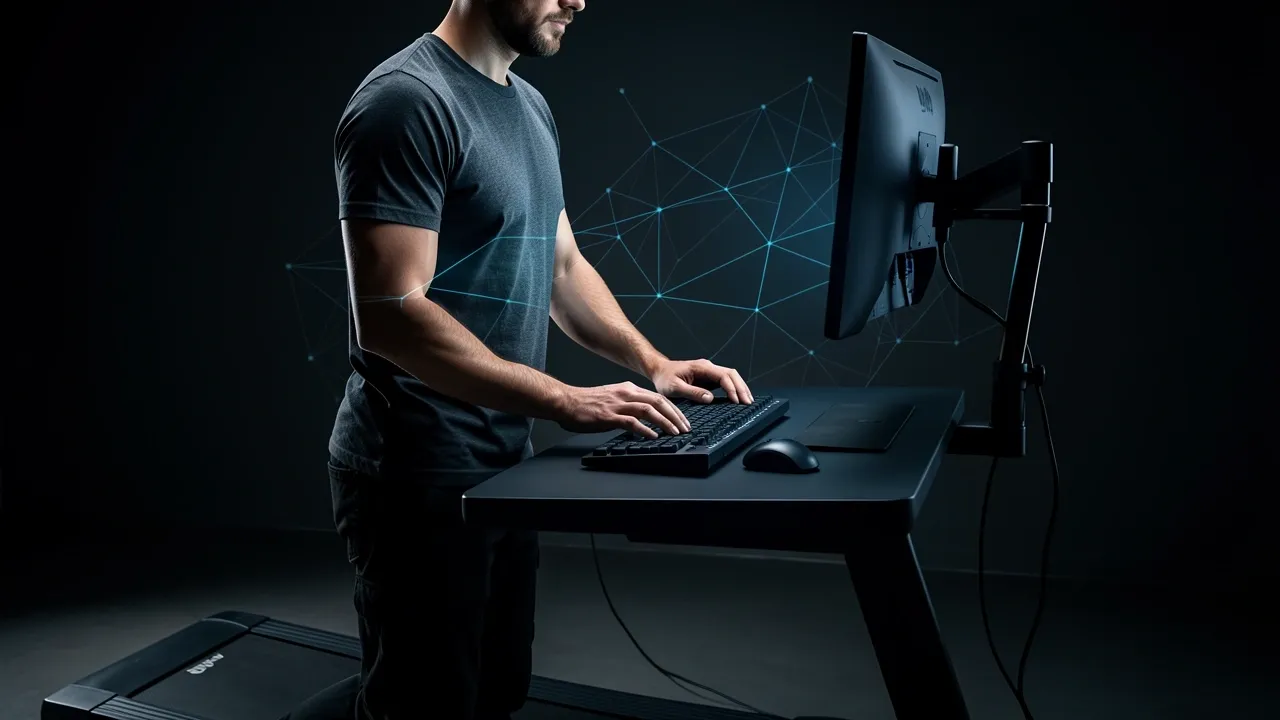
After months of testing different input devices on a walking pad desk, I can give you the verdict up front: the best ergonomic keyboard and mouse setup for a walking pad desk is not one specific product.
It is a system built around stationary input devices, minimal arm movement, a slightly lower desk height, and a low-profile split keyboard paired with a trackball or thumb-operated mouse.
A vertical mouse alone will not save you.
Here is why that matters, what to buy, and exactly how to set it all up.
Why a Walking Pad Desk Changes Every Ergonomics Rule
Standard office ergonomics assumes a stable base. Your chair is locked, your feet are flat, and your torso stays still while you type. A walking pad breaks that assumption with every single step.
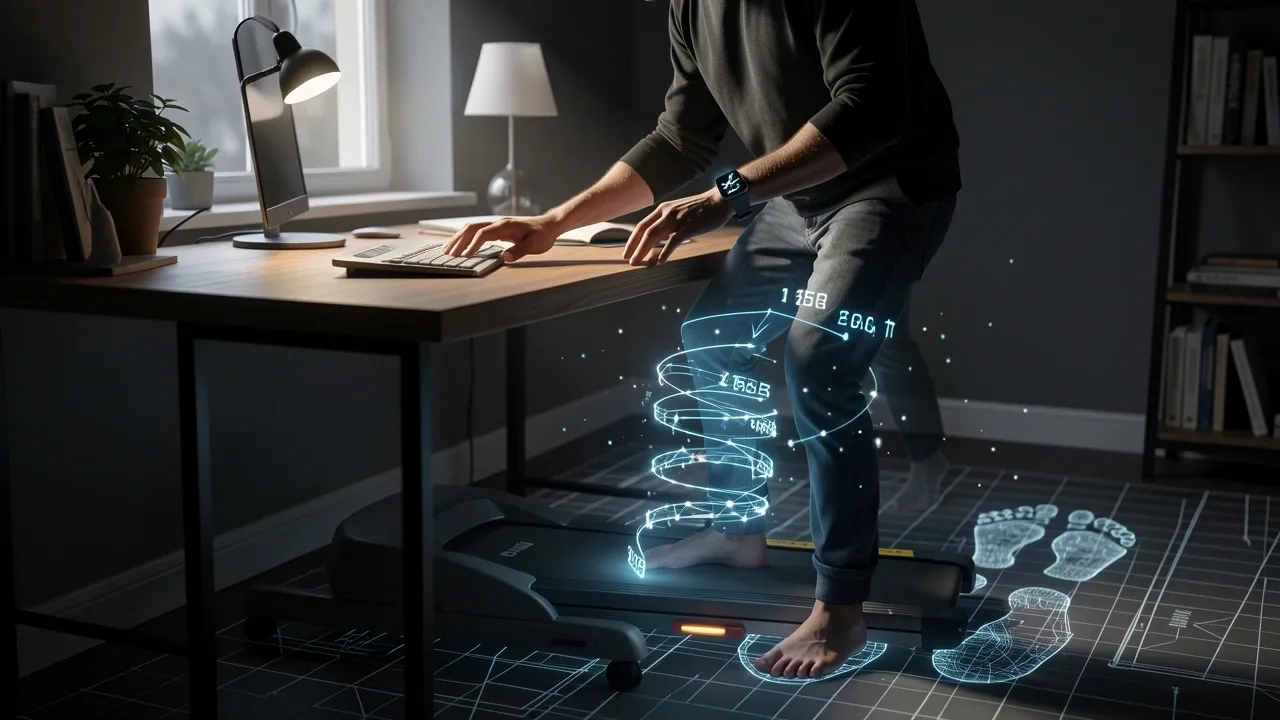
When you walk at typical working speeds between 1 and 2 mph, your head and torso move up and down in a small but constant rhythm.
Your shoulders also sway side to side as your weight shifts between feet.
If your keyboard is placed at a distance designed for sitting or standing still, your shoulder muscles will constantly fire to chase the moving keyboard.
That creates a fatigue pattern you have never felt at a regular desk.
There are three distinct problems to solve:
- Torso sway. Your upper body moves laterally with each step, so your hands need input devices that do not require large reaching motions.
- Heel-strike vibration. Every footfall sends a small shock up through the desk. Tall keyboards with heavy key switches amplify that vibration into your fingertips.
- Suspended arms. You cannot rest your forearms on the desk edge while walking without your wrists absorbing the impact. Your arms must float, which changes how much tension your shoulders carry.
Once you accept those three constraints, the product choices become obvious.
You need devices that keep your hands anchored and your shoulders relaxed, not devices that were designed for a motionless body.
The Arm Support Rule: The Problem Nobody Talks About
Every ergonomic guide says the same thing: rest your forearms on the desk or armrests so your shoulders can relax. That advice is useless on a walking pad.
If you put your full arm weight on the desk edge, each footstep drives that edge into your forearms. If you use chair armrests, you cannot walk.
The real rule for walking pad desks is different. Keep your hands close to your body and let your arms hover without forcing your shoulders to hold them up aggressively.
Your elbows should stay bent at slightly more than 90 degrees, tucked near your ribs.
The keyboard needs to sit close enough that your upper arms hang naturally and only your forearms angle upward slightly.
A negative-tilt keyboard tray helps more than any wrist rest here.
Negative tilt means the far edge of the keyboard is slightly lower than the near edge, which keeps your wrists in a straight, neutral line without needing a palm rest.
Your hands hover, your wrists stay flat, and your shoulders stay quiet.
If you insist on using a wrist rest, make it a low-profile gel pad that allows micro-sliding.
Do not anchor your wrists on a tall rigid rest, because the walking motion will translate straight into your carpal tunnel.
One practical tip I learned the hard way: set your desk height while wearing the flat-soled shoes you plan to walk in.
If you measure your elbow height in socks and then add a walking shoe with a 1-inch sole, your desk will be an inch too low and you will subconsciously lean forward all day.
The Best Keyboard Types for a Walking Pad Desk
Not every ergonomic keyboard works on a moving platform. The best options share three traits: short key travel, quiet switches, and a layout that keeps your shoulders open.
Low-Profile Keyboards
Low-profile keyboards keep your wrists at a flatter angle because the keys sit closer to the desk surface.
They also have short key travel, which means your fingers do not need to push through a long downward stroke while your body bounces.
Scissor-switch boards and low-profile mechanical boards both work well here.
The Logitech MX Keys line is a solid reference point for this category, as are low-profile mechanical options like the Logitech MX Mechanical Mini.
Split Ergonomic Keyboards
A split keyboard divides the key layout into two halves so your shoulders stay in a natural, relaxed line instead of rounding forward. On a walking pad, this matters more than people realize.
Your torso is already swaying slightly, and a split layout stops you from compensating by hunching.
The Kinesis Freestyle series is a common example, as are other tented split boards that angle the two halves upward.
What to Avoid
Stay away from tall mechanical keyboards with heavy tactile switches or loud clicky switches.
High actuation force means your fingers have to fight the downward momentum created by your footsteps, which causes unnecessary key bounce and fatigue.
And in practice, the combination of a walking pad motor hum plus loud clicky keycaps is surprisingly unpleasant within the first twenty minutes.
Quiet linear switches or scissor switches are the sweet spot. If you go mechanical, look for low-profile linear options with a light actuation force.
The Best Mouse Types for a Walking Pad Desk
Here is where most people make the deciding error.
They buy a vertical mouse because search results tell them it fixes wrist pain, and then they discover that moving their arm across a desk while walking feels terrible.
The mouse drifts with every step and the cursor goes wherever it wants.
On a walking pad, a trackball is generally better than a vertical mouse because it allows you to move the cursor without moving your arm at all.
Your hand stays anchored in one spot, which cancels out the effect of torso sway. This is the single biggest upgrade you can make to your setup.
Thumb-Operated Trackballs
Thumb trackballs, like the Logitech ERGO series, feel familiar to mouse users because the ball sits under your thumb while your fingers rest on the buttons.
They are easy to adopt and keep your wrist in a neutral handshake position. The tradeoff is that your thumb can fatigue after several hours of continuous scrolling and clicking.
Finger-Operated Trackballs
Finger trackballs, like the Kensington Orbit with Scroll Ring, use your index and middle fingers to roll the ball.
They offer smoother control over long typing sessions and spread the workload across more joints, but they have a steeper learning curve. Give yourself a week before judging one.
Vertical Mice: Workable but Conditional
If you cannot get used to a trackball, a vertical mouse can still work, but only under specific conditions.
You need a high-DPI setting so small movements translate to large cursor movements, a hard, stable mouse surface with a rubber backing that will not slide, and a willingness to move from your elbow rather than your shoulder.
The Logitech MX Vertical and cheaper alternatives like the Zelotes C18 fit this category.
The Specialist Option
For people with significant wrist pain who have tried everything else, the Contour RollerMouse family is worth mentioning.
It uses a wide horizontal bar that you sweep with your whole hand, which is biomechanically very different from any mouse or trackball.
It works extremely well on a walking pad because your hand stays planted, but it takes up a large footprint on the desk and comes with a premium price tag.
| Feature | Thumb Trackball | Finger Trackball | Vertical Mouse |
|---|---|---|---|
| Arm movement needed | None | None | Some |
| Learning curve | Low | Medium | Low |
| Wrist position | Neutral | Neutral | Handshake |
| Long-session fatigue | Thumb may tire | Even across fingers | Shoulder may tire |
| Best for walking pads | Excellent | Excellent | Good with high DPI |
One more detail: if you do use a vertical mouse, swap your cloth desk mat for a thin rubber-backed pad.
Cloth creates drag that gets amplified with each footstep, making fine cursor control feel jittery.
The Complete Walking Pad Desk Configuration
You now know which devices work. Here is how to arrange them so your body stays comfortable all day. Follow these steps in this order:
- Set the walking pad speed first. Start at 0.5 mph and keep it there until everything else is aligned. Speed changes alter your posture, so never adjust your desk after increasing the pace.
- Walk to your natural position on the pad, then set the desk height. Your elbows should sit slightly above the keyboard surface so your wrists stay flat. Measure this while wearing the shoes you plan to use.
- Position the keyboard one inch from your body. When your elbows are relaxed at your sides, the near edge of the keyboard should almost touch your torso. This eliminates forward reaching.
- Place the mouse or trackball level with the keyboard. Do not put it on a separate tray or a raised platform. Same height, same distance, same plane.
- Set the monitor so the top third of the screen sits at eye level. If your walking pad bounces the desk, use a monitor arm with a strong clamp rather than the factory stand.
- Route every cable away from the walking deck. Use vertical cable clips or a cable spine to keep slack off the floor and out of your foot path.
- Test the whole setup for 30 seconds at slow speed before working. Type a few sentences, move the cursor, and check that nothing wobbles.
A critical safety note: keep the walking pad remote or emergency stop switch within easy reach but not directly under the keyboard.
If you need to grab it in a hurry, a reaching motion near your typing area can make you step off the pad awkwardly. Put it on the desk edge closest to your dominant hand.
What to Avoid: Mistakes That Ruin a Walking Pad Desk
I have seen enough walking pad setups go wrong to know the patterns. Here are the ones that cause the most pain.
- Using a traditional mechanical keyboard with heavy switches. Each heel strike creates unnecessary key bounceбо because your fingers are pressed into the keys at the exact moment your body lands. Light switches or scissor switches are the fix.
- Using a vertical mouse without a trackball alternative. The arm movement across a desk gets amplified by walking. If you must use a vertical mouse, pair it with a high-DPI setting and a hard pad.
- Setting desk height from a sitting-desk guide. Your body position changes when you walk. Sitting ergonomics place the keyboard lower and the monitor higher. Walking adds vertical oscillation, so the heights need to be measured while you are in motion.
- Ignoring monitor wobble. A lightweight monitor stand will sway with every step. Invest in a monitor arm with a heavy-duty clamp or a dual-arm mount to kill the low-frequency vibration.
- Forgetting that the walking pad can migrate. Some lightweight pads slowly slide backward as you walk. Put a rubber mat under the pad to keep it anchored to the floor.
- Touching metal electronics while walking. Static buildup from the walking belt can discharge through metal keyboard frames or mouse shells. Choose plastic-bodied devices and avoid touching metal desk components while the pad is running.
One myth needs to be put to rest: a vertical mouse does not fix wrist pain on a walking pad. It fixes forearm pronation, which is the twisting motion that contributes to some wrist issues.
It does nothing for the new arm-swing problem created by walking. That is exactly why this article keeps steering you toward trackballs or anchored input devices.
Budget vs. Premium Setups: Two Recommended Builds
You do not need to spend a fortune, but you also should not cheap out on the two devices your hands touch all day. Here are two complete configurations that both work well.
| Component | Starter Build | Premium Build |
|---|---|---|
| Keyboard | Low-profile scissor-switch board with quiet keys | Split ergonomic low-profile keyboard with tenting |
| Pointer device | Thumb trackball or ambidextrous finger trackball | Wireless finger-operated trackball with adjustable angle |
| Desk surface | Small anti-static mat with rubber backing | Heavy rubber-based felt desk pad for stability |
| Monitor support | Simple monitor riser | Dual-monitor arm with mounting clamps |
| Connectivity | Wired or 2.4GHz dongle | Wireless via USB dongle near the devices |
| Walking pad | Any basic folding pad | Pad with rubber base and low noise rating |
The starter build gets you 80 percent of the comfort for a fraction of the price. The premium build adds split keyboard benefits, better stability, and a more refined mouse experience.
Both share the same core principle: your hands stay anchored and your arms never chase the desk.
One connectivity warning for both builds: Bluetooth can drop out near walking pad motors, especially on cheaper pads.
If you go wireless, use a 2.4GHz USB dongle and place the receiver close to your keyboard and mouse instead of hiding it behind the monitor.
Frequently Asked Questions
What walking speed is best for typing on a treadmill desk?
Keep your typing speed between 0.8 and 1.6 mph. Below 0.8 mph, the walking motion feels unnatural and you may find yourself leaning toward the desk.
Above 2 mph, your wrist and shoulder muscles begin compensating noticeably for the increased torso sway, and typing accuracy drops.
Can I use a standing desk mat instead of a walking pad?
No. A standing desk mat provides cushioning for static standing but does not give your legs the movement they need. On a walking pad, your body is in motion, which requires a firmer, balanced base.
A soft mat under a walking pad can cause ankle instability and reduce the pad's grip on the floor.
Does the walking pad motor interfere with wireless keyboard and mouse signals?
It can, especially with Bluetooth. Many walking pad motors emit electromagnetic interference that causes Bluetooth dropouts or input lag.
Use devices with a 2.4GHz USB dongle instead, and place the receiver within a few feet of the keyboard and mouse.
Should I use a wrist rest while walking?
Not as a hard anchor for continuous typing. A tall rigid wrist rest forces your wrists to press into it with each footstep, which transfers impact directly into the carpal tunnel area.
If you need one, use a low-profile gel rest that allows micro-sliding rather than a solid support.
Can I train myself to type while walking without hunching?
Yes, but the desk height matters more than your discipline. If the desk is even one inch too low, you will subconsciously lean forward to compensate.
Measure your elbow height while standing in your walking shoes gap and then recheck it after the first week, because your posture on the pad will shift as you get used to it.
Is a split keyboard really necessary for a walking pad desk?
Not strictly, but it helps. A split keyboard relaxes your shoulders and makes it easier to keep your hands in a neutral position when your torso is moving.
If you already type comfortably on a low-profile standard keyboard, you can skip the split design. If you have any shoulder or upper-back tension, the split layout is worth the switch.
Final Checklist Before You Walk Away
Here is everything from this article condensed into a quick pre-work review. Run through it once when you set up your desk and again after your first full day of walking.
- Desk height set while wearing your walking shoes, elbows slightly above keyboard height.
- Keyboard is low-profile or split, positioned close to your body, with negative tilt if possible.
- Pointer device is a trackball or a high-DPI vertical mouse on a stable rubber-backed pad.
- Monitor is at eye level and mounted securely so it does not wobble.
- Cables are routed away from the walking deck and off the floor.
- Walking speed is under 1.5 mph for typing sessions.
- Stop switch or control remote is within easy reach but not under the keyboard.
- Walking pad sits on a rubber mat so it cannot migrate.
The best ergonomic keyboard and mouse setup for a walking pad desk is the one that keeps your hands still, your shoulders relaxed, and your body in motion.
Buy for those three goals and you will not go wrong.